
Sign Up & Sign In
Step-by-step guide from sign-up to sign-in on EXA Bayesian Platform
Sign Up & Sign In
To use EXAWin, you need to sign up for the EXA Bayesian Platform. This document covers the entire process from Sign Up → Email Verification → Sign In.
Already have an account? Jump to Step 3 — Sign In.
What is EXA Bayesian Platform?
EXA Bayesian Platform is an integrated platform that provides Bayesian math-based sales analysis systems. Currently, EXAWin is available on the platform, with additional systems planned for the future.
When you sign up, a Workspace (company-level work space) is created, and you can use EXAWin and all future systems within it.
Step 1 — Sign Up
1. Open your browser and navigate to exawin.exaeuler.com.
2. Click the Get Started link at the bottom of the sign-in screen.
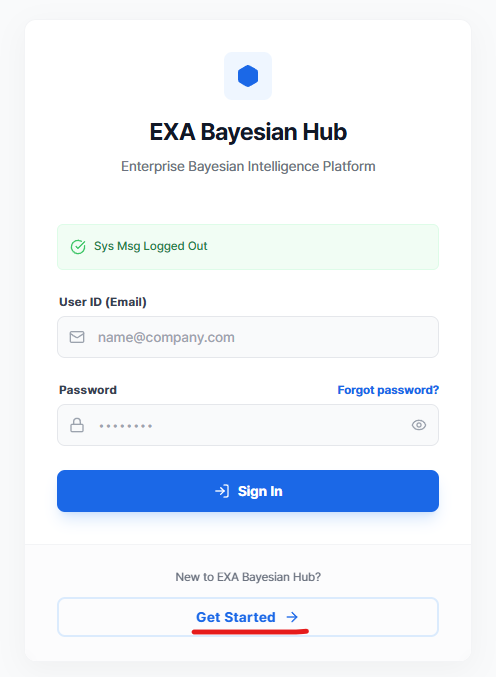
3. Fill in the sign-up form with the following information:
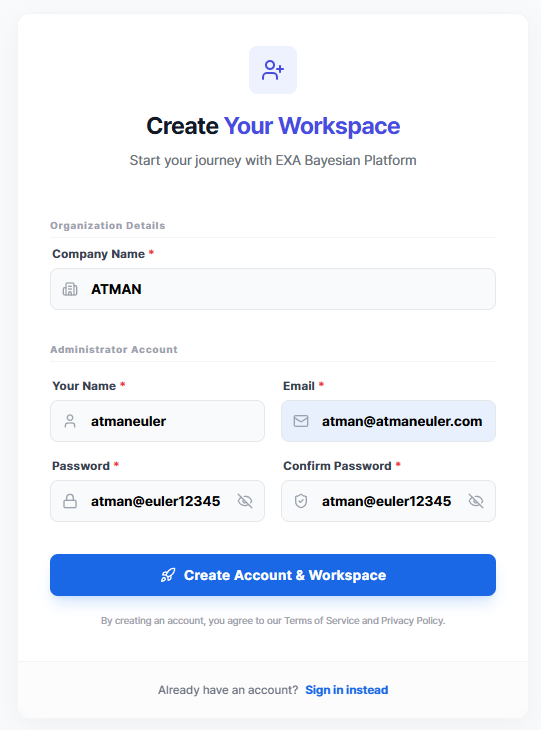
| Field | Description | Required |
|---|---|---|
| Company Name | Your company name (becomes the workspace name) | ✅ |
| Your Name | User name | ✅ |
| Email address for sign-in | ✅ | |
| Password | Password | ✅ |
| Confirm Password | Re-enter password | ✅ |
4. Click the Create Account & Workspace button.
5. The screen will display workspace creation progress:
- ① Company creation
- ② Administrator account creation
- ③ Default data setup (sales stages, signals, etc.)
- ④ Multilingual system configuration
6. Once all steps are complete:
- If email verification is required → "Email verification required" message appears. Proceed to Step 2.
- If auto-verified → You will be redirected to the dashboard.
Note — The first user created during sign-up is automatically assigned the Administrator (Admin) role. You can change or add administrators later in the User Management menu. For Professional plans, you can add team members within the allowed user count. See User Master under the EXAWin section for details.
Step 2 — Email Verification
For account security, you need to verify the email address you entered during sign-up.
1. Check your email inbox.
2. Open the verification email from EXA.
- Subject example: "Verify your email address"
- Sender: EXA (noreply@exaeuler.com)
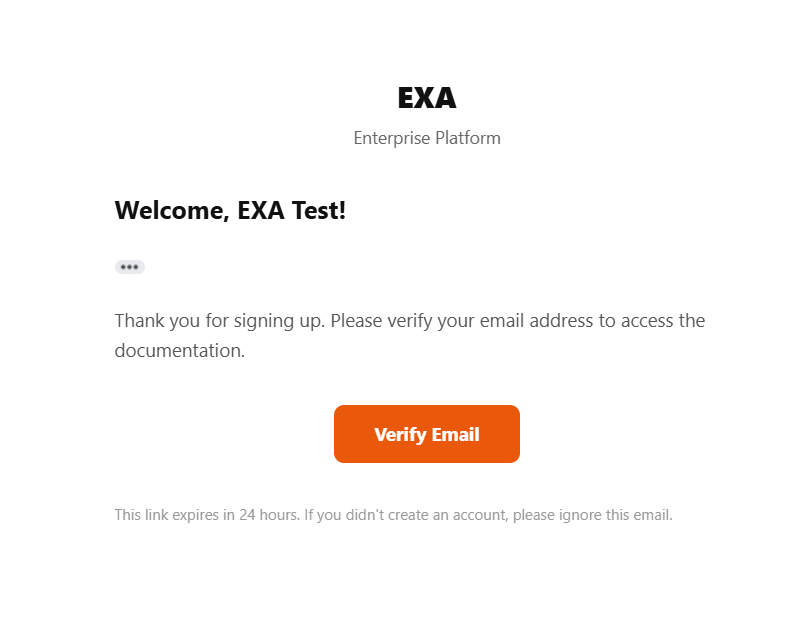
3. Click the Verify Email button in the email.
4. When you see "Email verified!" in your browser, verification is complete.
5. Click the Sign in now button to go to the sign-in page.
Important
- The verification link is valid for 24 hours.
- If you don't receive the email, check your spam folder.
- You cannot sign in without completing verification.
Step 3 — Sign In
After email verification, you will be automatically redirected to the sign-in screen. Your email and password will be pre-filled, so you can sign in right away.
If you closed the sign-in page or are accessing later:
1. Navigate to exawin.exaeuler.com.
2. Enter the email and password you used during sign-up.
3. Click the Sign In button.
4. Upon successful sign-in, you can start using EXAWin, the Bayesian-based CRM system.
Forgot Your Password?
You can reset your password if you forgot it.
1. Click the Forgot password? link on the sign-in screen.
2. Enter the email address you used during sign-up.
3. Click the Reset Password button.
4. A password reset link will be sent to your email.
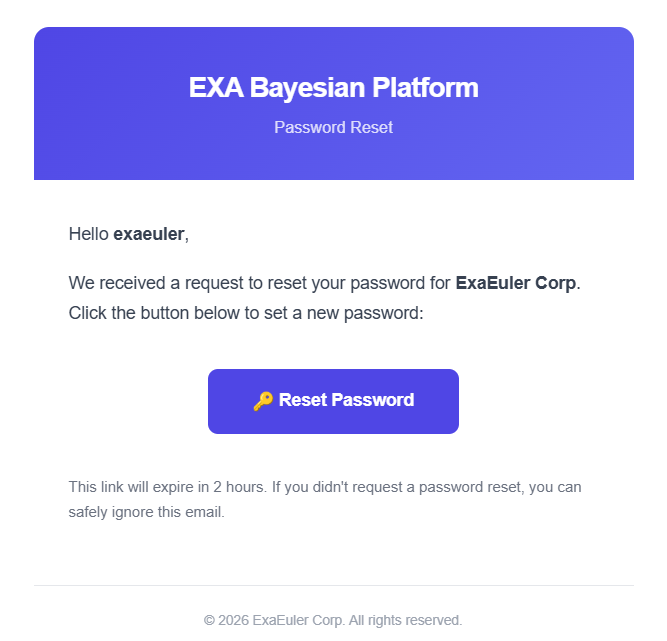
5. Click the link and set a new password.
Note — The password reset link is valid for 2 hours.
Troubleshooting
| Issue | Solution |
|---|---|
| "Invalid email or password" error | Double-check your email and password |
| Verification email not received | Check your spam folder or try signing up again |
| Verification link expired | Sign up again with the same email to receive a new verification email |
| Password reset email not received | Make sure you're using the correct registered email |
Password Rules
- Minimum 8 characters
- Combining letters and numbers is recommended for better security
Note: EXA Homepage Account
You can also create a separate account on the EXA homepage (exaeuler.com). The homepage account is for Docs viewing only and is unrelated to EXAWin system access.
If you sign in to the homepage with your EXA Platform (EXAWin) account, the system will automatically create a homepage account. No separate sign-up is needed.
Next Steps
Once sign-up and sign-in are complete, refer to the Platform Global Features guide and EXAWin section guides to start configuring your system.
→ EXA Platform Global Features — Screen layout, multilingual features, key features overview